


RingCentral is one of the most popular cloud communication platforms in the market. It offers calling, messaging, voicemail, recordings, analytics, and more. When RingCentral is integrated directly into Odoo, businesses gain a unified workspace where all communication and all customer information stay connected.
The RingCentral Integration module for Odoo 19.0 solves one of the biggest challenges teams face today. It brings enterprise level telephony features directly into Odoo and turns CRM and Helpdesk workflows into a fully connected experience. This leads to higher productivity, better customer engagement, and accurate call tracking without any manual work.
This blog explains how the RingCentral Integration module works, what features it offers, and why it is valuable for businesses that want to build a professional communication environment inside Odoo.
What is the RingCentral Integration Module?
The RingCentral Integration module is an advanced connector that links your RingCentral phone system with your Odoo environment. Once installed and configured, the module allows users to make calls, receive calls, and manage communication records without leaving the Odoo interface.
The module is designed for Odoo version 18.0 & 19.0 and provides a user-friendly telephony experience inside CRM, Contacts, Helpdesk, Sales, and any other module where calling customers is part of the workflow. It is built using RingCentral APIs and OAuth authentication which ensures secure and reliable communication between Odoo and RingCentral.
With this integration in place, your Odoo users can simply open a contact, click on the phone number, and instantly start a call through RingCentral. At the same time, every call is recorded in Odoo with detailed logs that help teams track customer engagement and measure performance.
Key Features of the Odoo RingCentral Module
The RingCentral module offers a wide set of features that improve both productivity and customer communication. Below are the key capabilities that make this integration powerful.
Embedded RingCentral Dialer Inside Odoo
Users get a RingCentral dialer directly inside their Odoo interface. They can search numbers, place calls, check call history, and manage call settings without switching tabs.
One Click Calling from CRM and Contacts
All phone number fields become clickable. With a single click, users can initiate calls from leads, opportunities, customer profiles, vendor records, helpdesk tickets, or any custom module.
Automatic Call Logging
Every inbound and outbound call is automatically logged in Odoo. Logs include:
- Caller and receiver information
- Call duration
- Time and date
- Call direction (inbound or outbound)
- Linked contact or CRM lead
This eliminates the need for manual data entry and ensures accurate reporting.
Call Recordings and Transcripts
If your RingCentral plan supports recording or transcription, the integration fetches that data and attaches it to the related Odoo record. This is extremely useful for:
- Quality monitoring
- Agent training
- Dispute resolution
- Customer history tracking
Real Time Synchronization via Webhooks
The module listens to RingCentral events using secure webhooks. This means call logs are updated instantly inside Odoo whenever a call happens.
Background Sync for Reliability
Even if the webhook fails or your network temporarily goes offline, the module runs a background synchronizer that fetches missing logs and updates call history in Odoo.
Analytics and Reporting
Odoo users can view:
- Total calls handled
- Average handling time
- Outbound vs inbound calls
- Call results and performance
- Agent wise call distribution
These analytics help managers optimize sales and support operations.
How to Setup RingCentral Module in Odoo
Integrating RingCentral with Odoo allows you to manage calls, logs, recordings, SMS, and real-time presence directly inside your Odoo environment. The RingCentral Integration module connects your Odoo system with your RingCentral account using secure OAuth authentication and webhook synchronization. Once configured, users can make and receive calls from CRM forms, track full call history, access analytics dashboards, and use the embedded softphone without leaving Odoo.
Follow the steps below to complete the setup.
RingCentral Module Installation
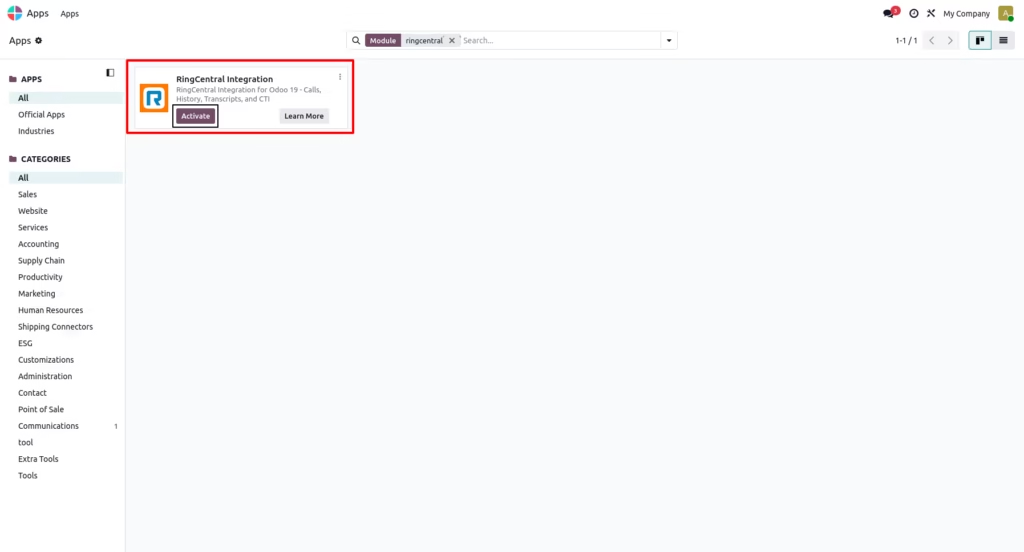
Go to the Apps menu in Odoo.
Remove the Apps filter and search for RingCentral Integration.
Click Install.
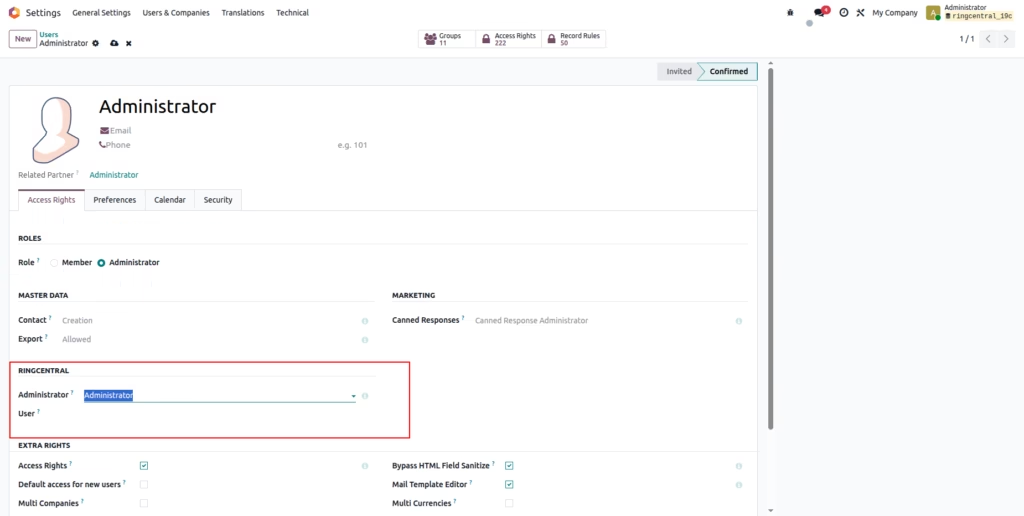
RingCentral Access (User-Level Permissions)
Administrator
Assign this role to users who need full control over the RingCentral configuration inside Odoo. A RingCentral Administrator can:
- Manage global RingCentral settings and credentials
- Configure OAuth and webhook settings
- View all call logs and recordings
- Manage RingCentral user accounts and permissions
- Access advanced CTI features and analytics
Note: Use this role only for technical or management users who need complete access.
User
Assign this role to regular Odoo users who will make and receive calls through RingCentral. RingCentral Users can:
- Log in with their personal RingCentral account
- Make outbound calls from CRM forms
- Receive inbound call popups
- View their own call history, recordings, and transcripts
- Sync calls with contacts, leads, or opportunities
Recommended for: Sales teams, support agents, and customer service staff.
RingCentral Application Setup
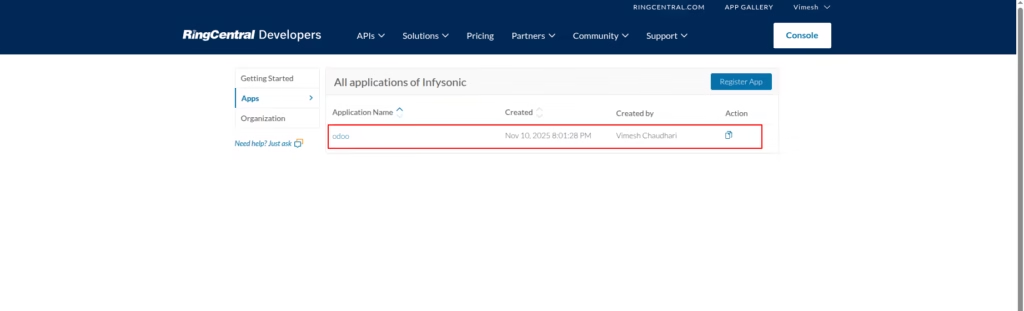
Log in to the RingCentral Developer Portal.
Go to Console > Apps and create a new application or use an existing one. In this example, the application is named Odoo.
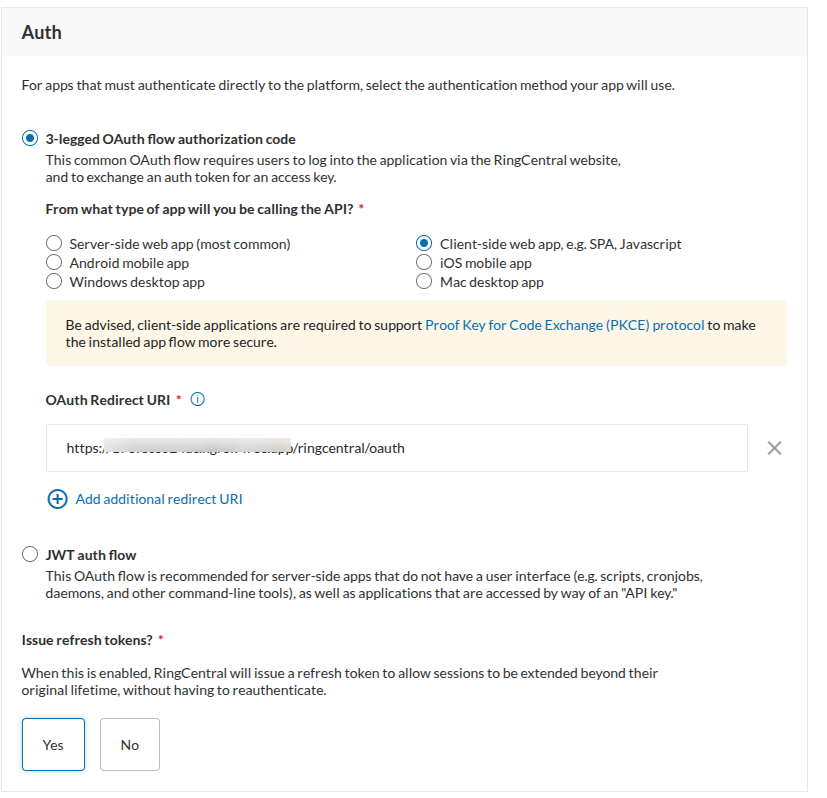
Auth Configuration Instructions
Click Settings, then scroll down to the Auth section.
In this section, configure how your application will authenticate with RingCentral:
- Select 3-legged OAuth flow authorization code (recommended for web-based integrations).
- Choose the appropriate app type depending on your Odoo setup, for example:
– Client-side web app (SPA, JavaScript)
– Server-side web app - Enter the OAuth Redirect URI. This is the URL RingCentral uses to send the authorization code back to your Odoo instance after successful authentication.
Required Redirect URLs:
https://your-odoo-domain.com/ringcentral/oauth
https://apps.ringcentral.com/integration/ringcentral-embeddable/latest/redirect.html
Both URLs must be added in the RingCentral app configuration to ensure proper OAuth flow and seamless operation of the RingCentral Embeddable Widget inside Odoo. - Enable Issue refresh tokens? so RingCentral can provide a refresh token, allowing long-term authentication without requiring users to re-authenticate frequently.
Tip: Make sure the Redirect URI you enter exactly matches the one configured in Odoo (including https:// and any trailing slash).
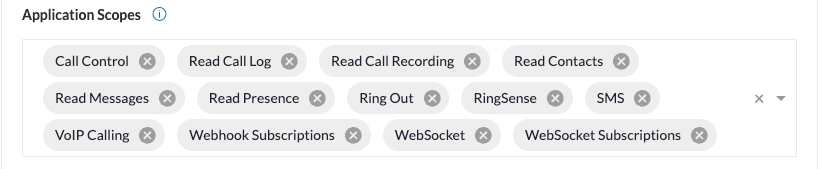
Configure the Application Scopes in the RingCentral Developer Console to define the permissions required by the Odoo integration.
These scopes allow the module to manage calls, retrieve call logs and recordings, synchronize contacts, receive webhook events, and enable real-time communication through the RingCentral Embeddable Widget.
Ensure all required scopes are selected exactly as shown to guarantee full functionality of calling, call history, recordings, transcripts, and analytics inside Odoo.
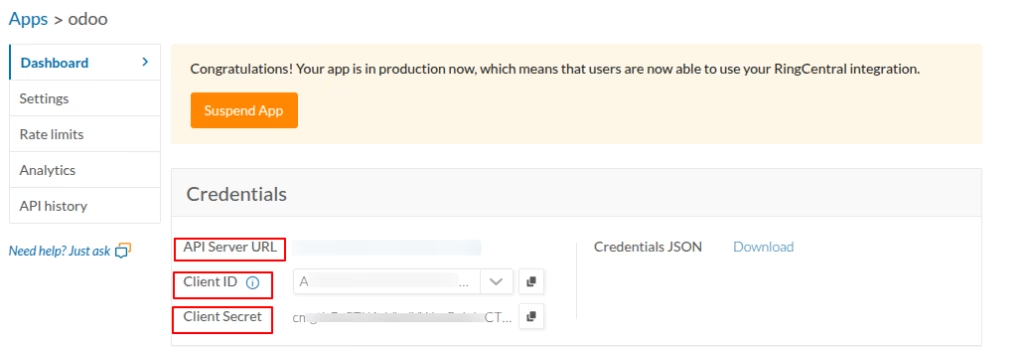
Go to Apps > Odoo inside the RingCentral Developer Console and copy your Client ID and Client Secret.
The Client ID identifies your app, while the Client Secret securely authenticates it during the OAuth process. Keep the Client Secret private and do not share it publicly.
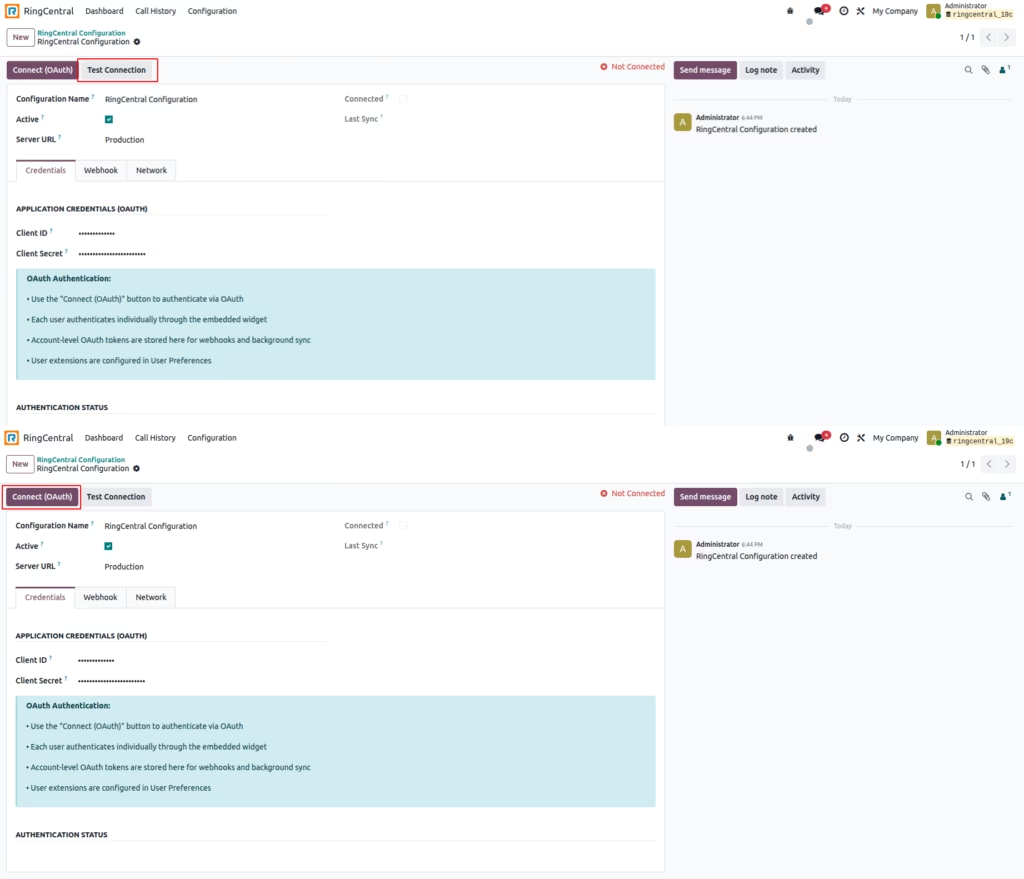
Create Configuration Record
Navigate to RingCentral > Configuration in the Odoo menu.
Click Create and complete the required fields:
- Configuration Name
- Client ID
- Client Secret
- Server URL
Verify Connection
Use the Test Connection button to verify:
- DNS resolution of the RingCentral server
- HTTPS connectivity to the server
- Proxy settings (if configured)
- SSL certificate validation
OAuth Authentication
Click Connect (OAuth) to authenticate:
- You are redirected to the RingCentral login page.
- Log in with your RingCentral credentials.
- Authorize the application.
- You are redirected back to Odoo.
- The configuration will show as Connected.
Success
Once authenticated, the module will automatically:
- Create a webhook subscription for call events.
- Set up automatic token refresh.
- Enable scheduled call history synchronization.
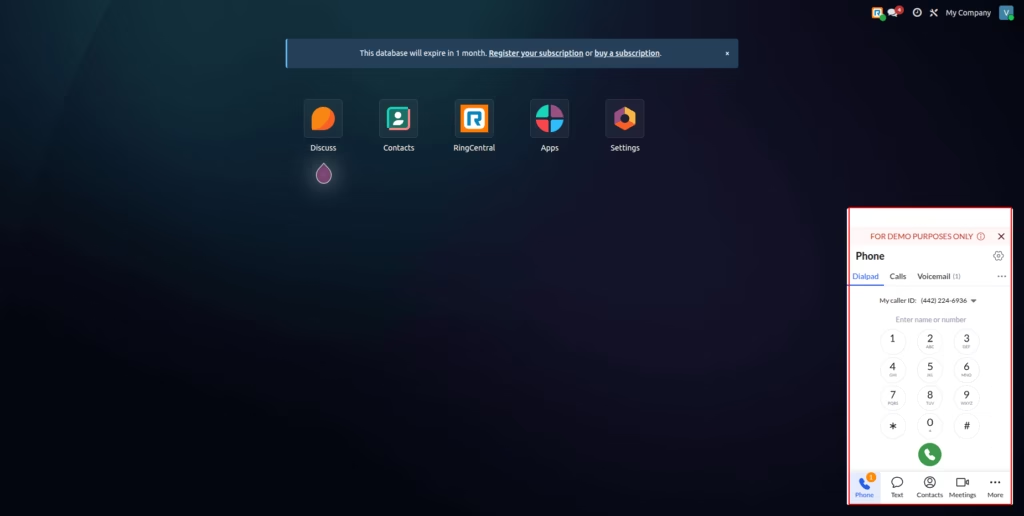
Click on the RingCentral Icon
When you click the RingCentral icon in the Odoo top bar, a small popup window opens on the right side of the screen.
The popup shows a Sign In button.
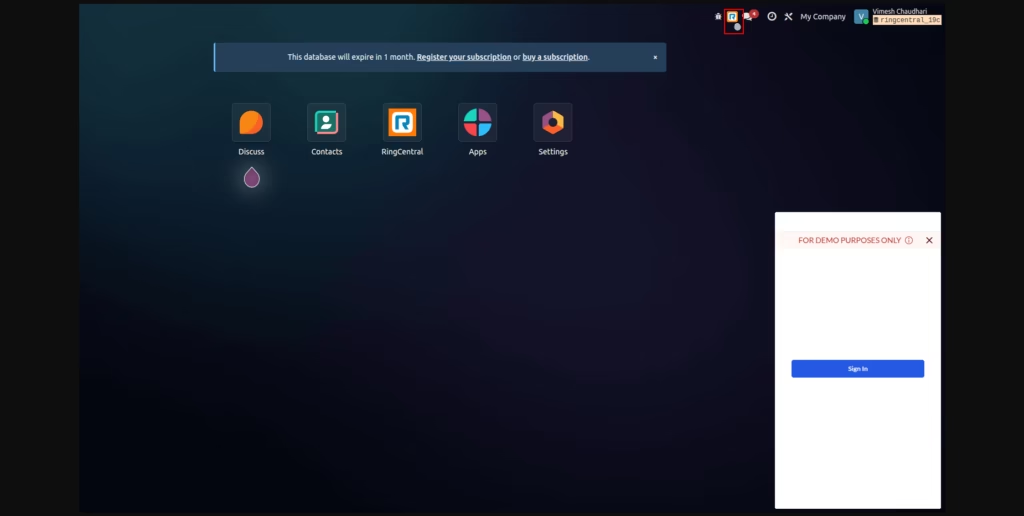
Click the “Sign In” Button
Click the Sign In button in the popup. This opens the RingCentral login window. You will see the RingCentral Account Information screen.
Click Continue to proceed with your RingCentral account.
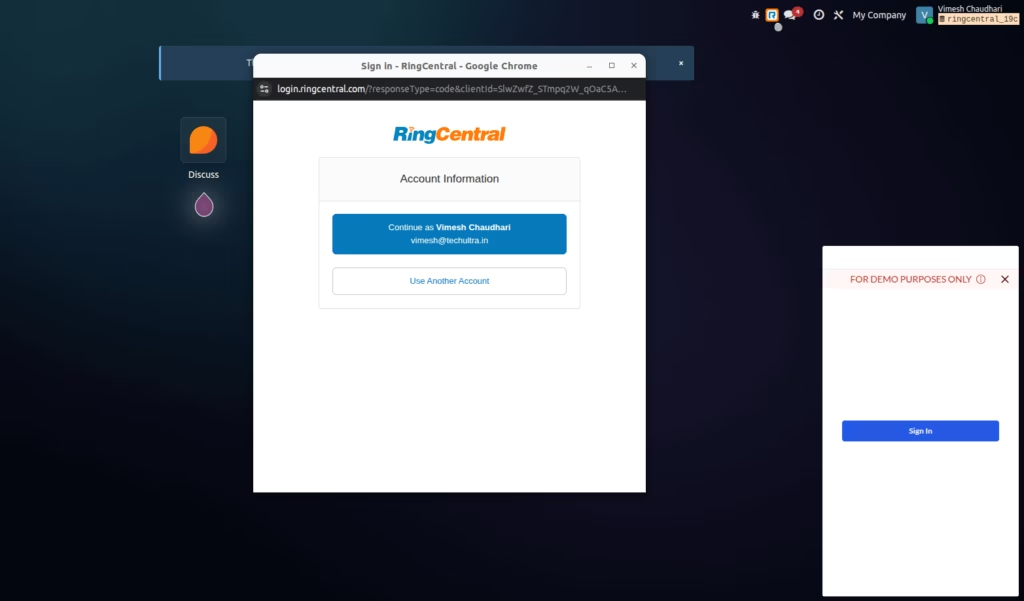
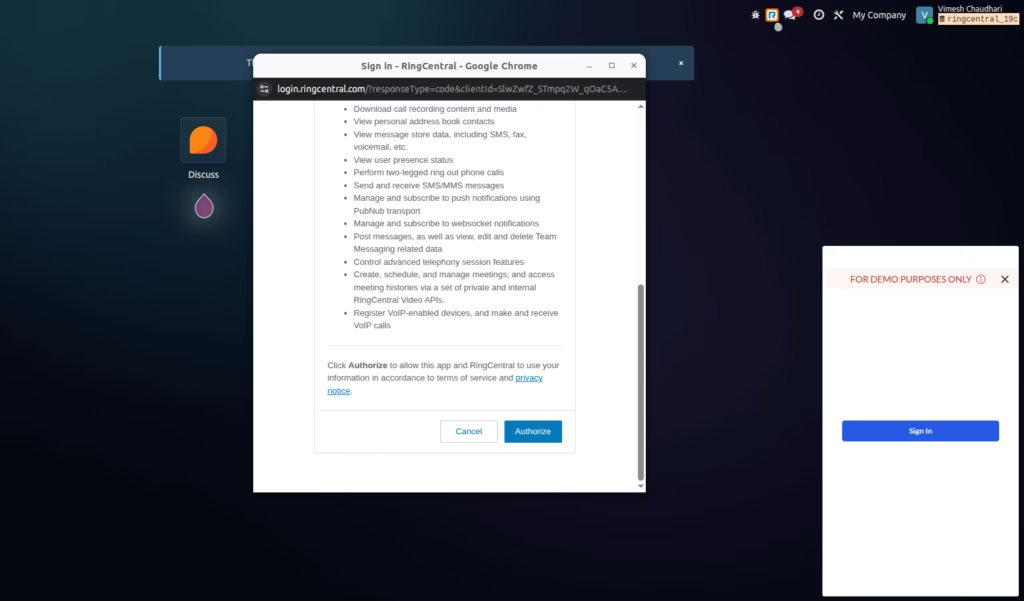
Review Permissions and Authorize
RingCentral shows a list of permissions required by the application. Scroll down and click the Authorize button.
This allows Odoo to access your RingCentral account and perform actions such as reading call logs, messages, and presence.
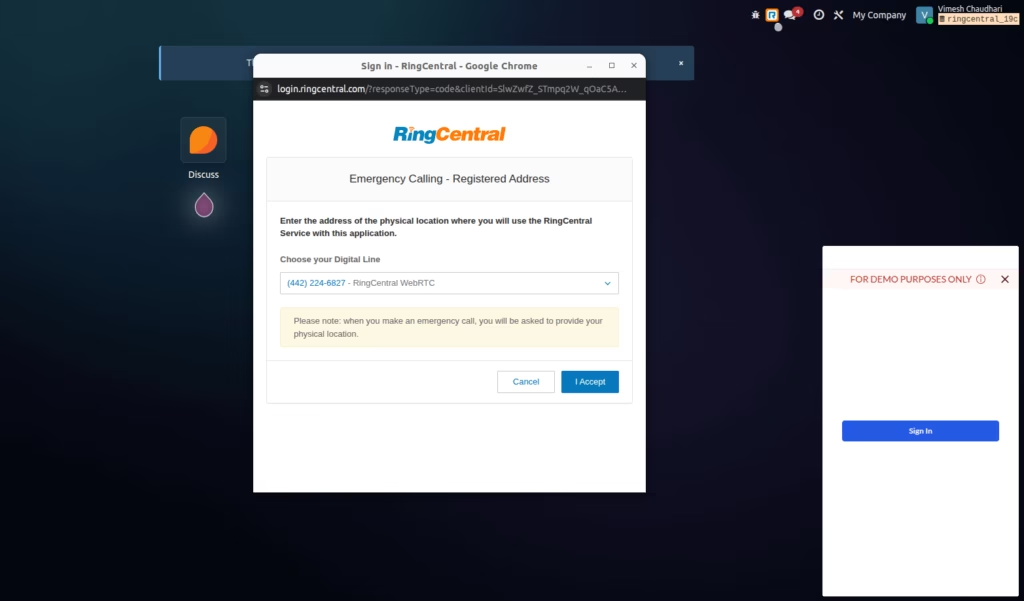
Confirm Emergency Calling Address
RingCentral requires you to confirm the Emergency Calling location. Choose your Digital Line and click I Accept.
Once accepted, RingCentral completes the authentication and redirects back to Odoo.
RingCentral Successfully Connected
After clicking I Accept, RingCentral completes the authorization and the softphone widget loads inside Odoo.
You will now see the RingCentral phone panel with:
- Dialpad
- Call Logs
- Voicemail
- Text Messages
- Contacts
- Meetings
This confirms that your RingCentral account is successfully connected and fully functional inside Odoo. You can now make calls, send SMS, check logs, and access telephony features directly from the Odoo interface.
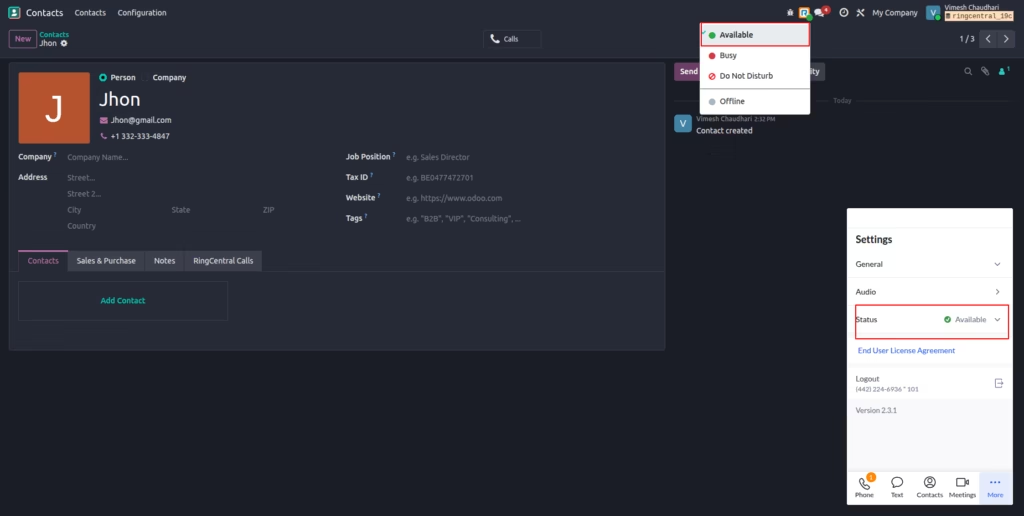
Real-Time Status Synchronization
When you change your availability status in Odoo, the same status is instantly synchronized with the RingCentral dialer. This ensures that your telephony presence always matches your Odoo status.
- Available Dialer shows you as Available.
- Busy Dialer switches to Busy.
- Do Not Disturb Dialer shows Do Not Disturb.
- Offline Dialer shows Offline.
This real-time status sync ensures accurate call routing, better team visibility, and a seamless workflow between Odoo and RingCentral.
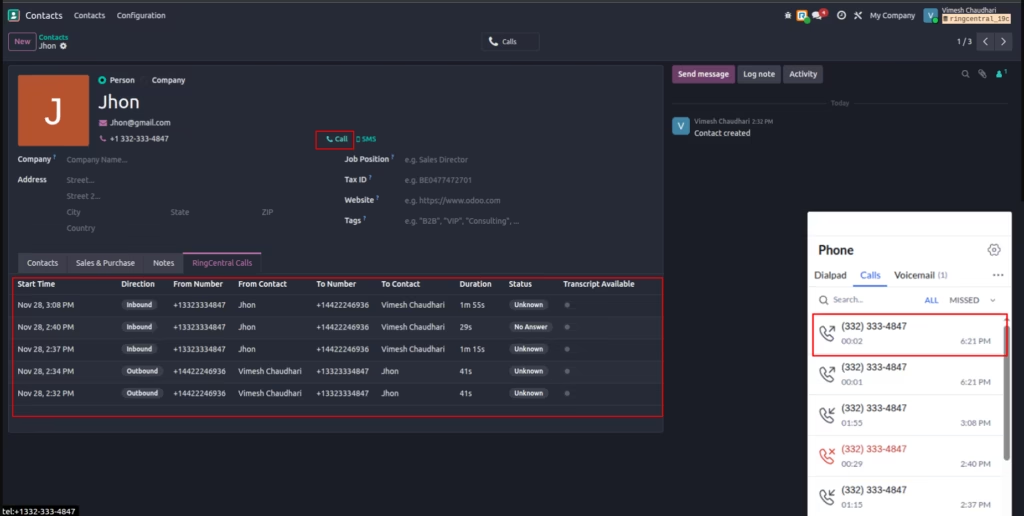
Call Actions on Contacts
When you click the Call button (phone icon) on the contact form, Odoo immediately places an outbound call through the embedded RingCentral dialer, and the corresponding call entry is logged in the contact’s RingCentral Calls tab.
You can also receive inbound calls from RingCentral. These inbound calls are automatically linked to the matching partner and their full call history (inbound + outbound) is available directly on the partner record for complete interaction tracking.
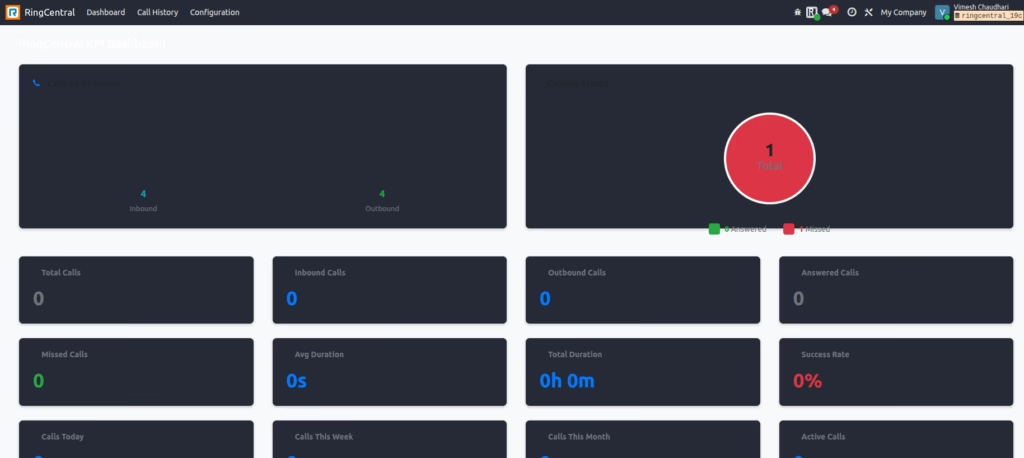
RingCentral KPI Dashboard
The KPI Dashboard gives managers a real-time view of all RingCentral activity inside Odoo.. It aggregates call data into simple tiles and charts for fast monitoring.
Main insights
- Calls by Direction inbound vs outbound split for capacity planning.
- Calls by Status answered vs missed for service quality.
- Total Calls & Duration overall workload and talk time.
- Success Rate percentage of answered calls.
- Time-based tiles calls today, this week, this month, and active calls.
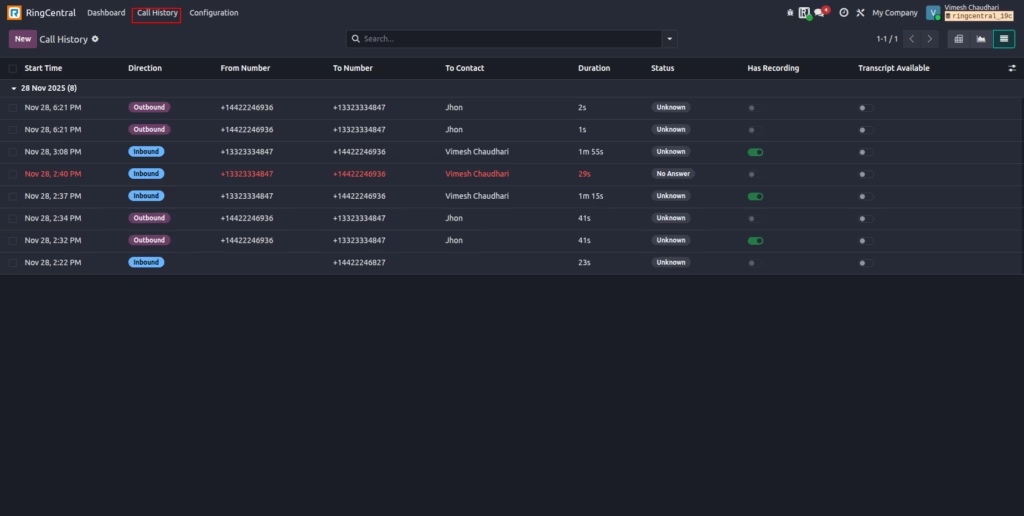
RingCentral Call History
Call History shows a unified log of every inbound and outbound call synced from RingCentral.. Users can search, filter, and audit calls without leaving Odoo.
Key columns
- Start Time and Direction (inbound / outbound).
- From Number, To Number, and linked Contact.
- Duration and Status (answered, no answer, busy, etc.).
- Has Recording and Transcript Available flags.
Benefits and Advantages Over Manual or Traditional Setup
Integrating RingCentral with Odoo brings significant advantages compared to using both systems separately.
Unified Workspace for All Teams
Sales agents, support teams, and managers no longer need to switch between Odoo and a separate communication system. Everything happens in one place which improves workflow efficiency and reduces time wasted.
Better Data Accuracy
Manual logging often leads to missing data or incorrect entries. Automatic call tracking ensures that every interaction is recorded with complete accuracy.
Improved Customer Experience
Agents can view customer history instantly. When a call comes in, they already know who the customer is, what previous interactions happened, and what tasks or issues are pending. This leads to faster and more personalized service.
Stronger Collaboration
Call logs, recordings, and notes stay connected to customer records. This lets teams collaborate better since everyone can see the same information.
Higher Productivity
Click to call, embedded dialer, and instant logging reduce repetitive tasks. Teams get more time to focus on the actual conversation instead of managing data.
Better Compliance and Quality Control
Recordings and call history help organizations maintain compliance standards and improve service quality through periodic reviews.
Scalability with Growing Teams
Since RingCentral and Odoo both support multi-user environments, this integration scales effortlessly as your business expands.
Conclusion
The RingCentral Integration for Odoo 19.0 is an excellent solution for businesses that rely heavily on phone communication. Whether you are handling sales, customer support, service coordination, or internal communication, this connector brings everything into one streamlined platform.
If your organization wants to modernize communication processes, improve agent efficiency, and build a professional telephony environment inside Odoo, this module is a strong and highly valuable investment.
Getting Started With The RingCentral for Odoo Module
If you are ready to enhance your Odoo environment with a secure and powerful communication system, the RingCentral Integration module is the easiest way to get started. It brings telephony, call logs, recordings, and customer data into one connected platform so your team can work faster and more efficiently.
You can download and install the module directly from the Odoo App Store by following this link: RingCentral Integration Module for Odoo 19.0. Reviewing the module on the App Store also allows you to check compatibility, pricing, and documentation before installation.